Everything you need
Litteraworks Features
A complete AI-powered transcription platform built for the pace and demands of modern media production.
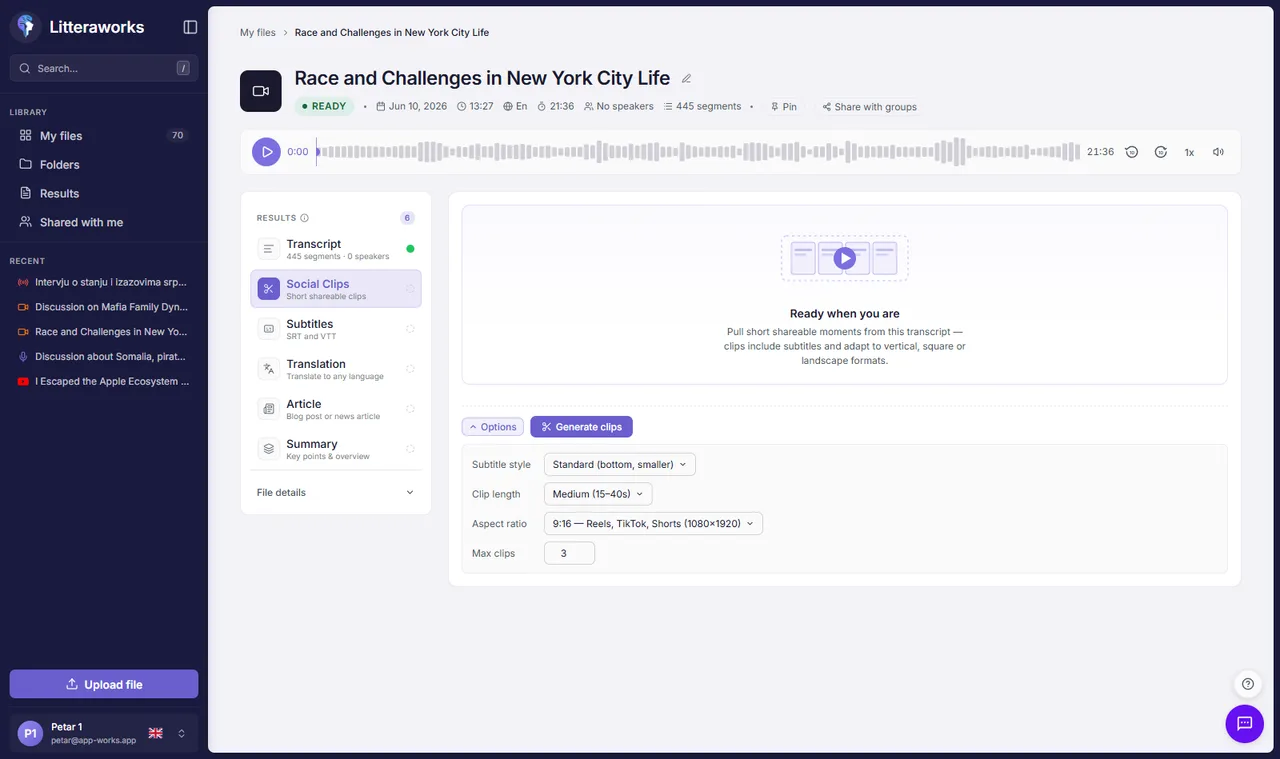
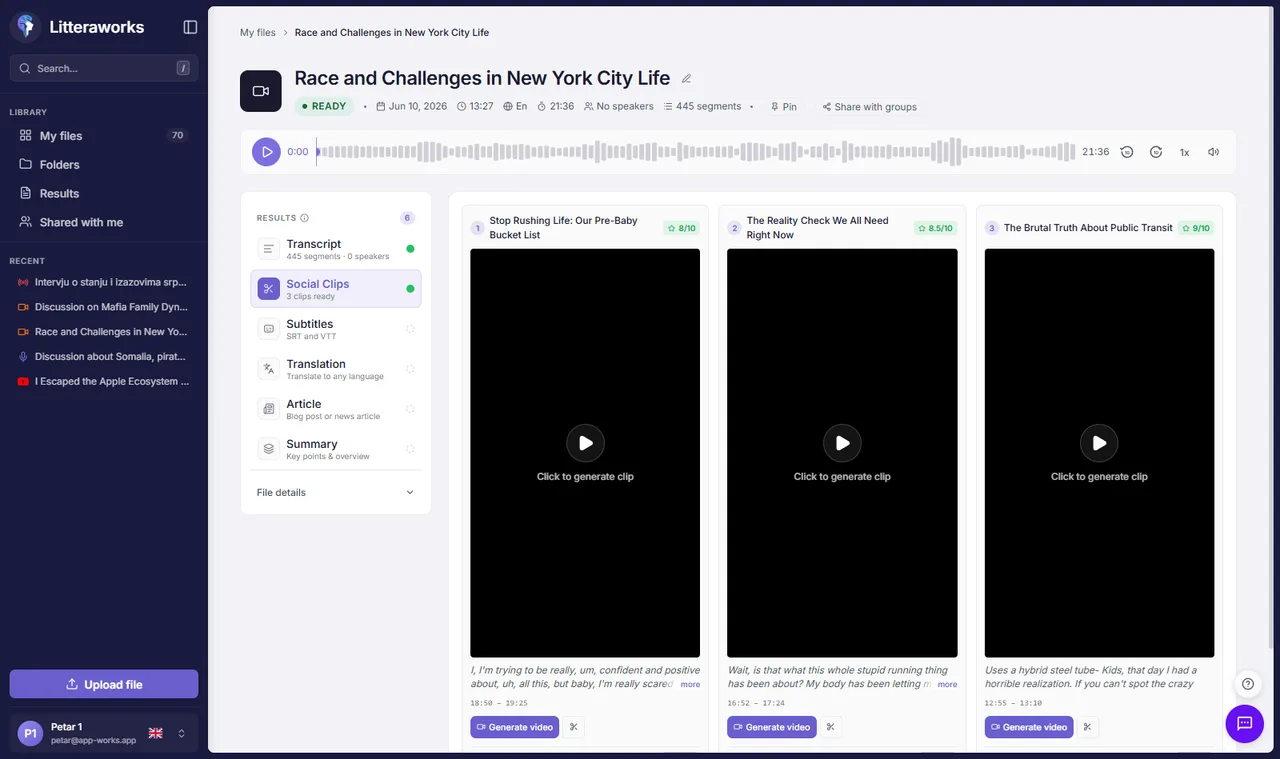
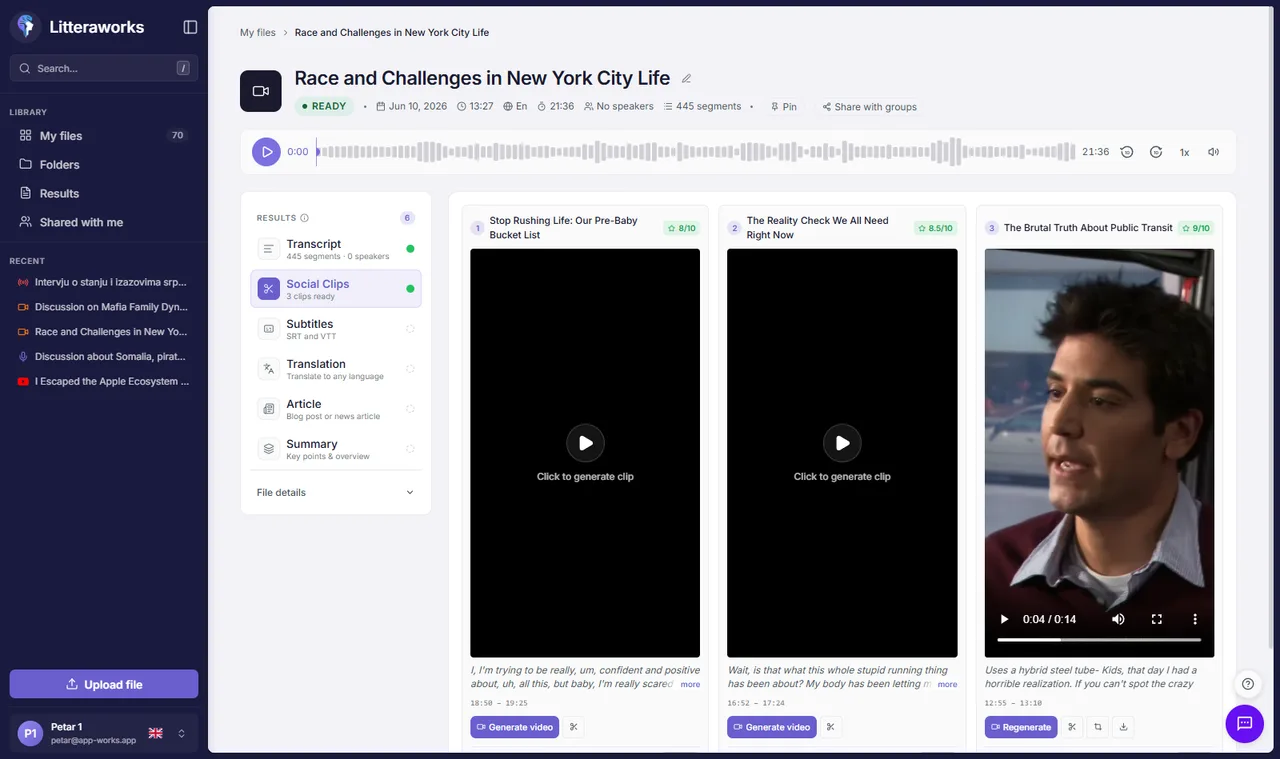
Social Clips
How It Works
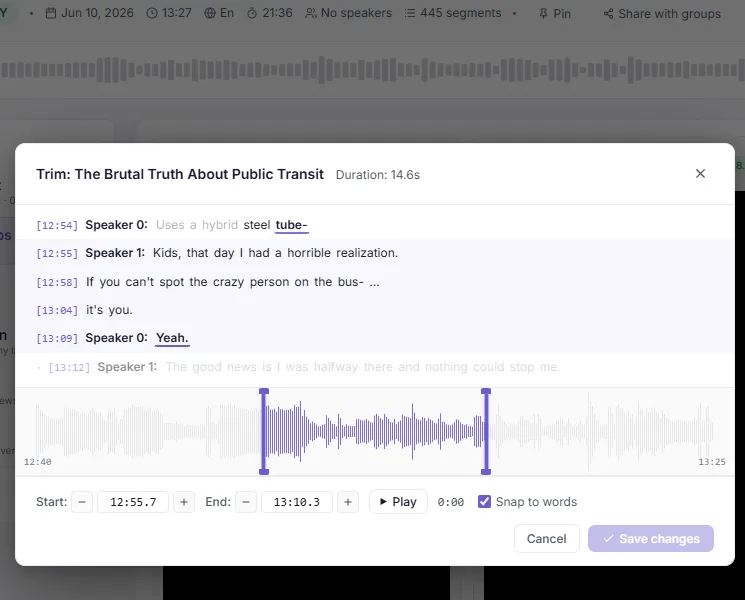
Core Transcription
Accurate, Fast, Multilingual
Powered by advanced AI models trained on media content — delivering broadcast-quality accuracy across 40+ languages, at a fraction of real time.
Deep Listening Mode
When Precision Matters
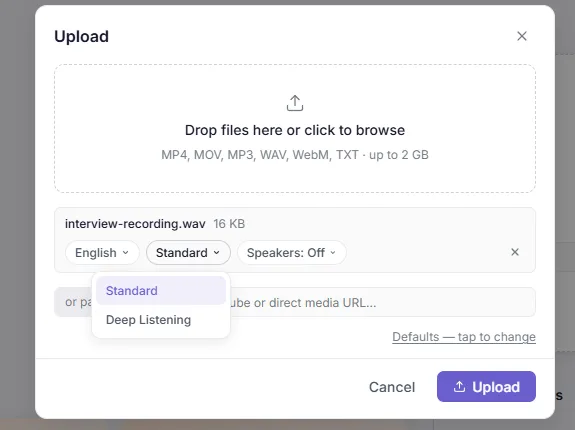
Deep Listening is an optional transcription mode that uses multi-pass processing to handle difficult audio better — background noise, overlapping speakers, strong accents, technical terminology. It takes a bit longer than standard transcription, but delivers cleaner results with better speaker recognition.
In our testing, Deep Listening improves accuracy by 5–8 percentage points across languages, with the biggest gains in challenging audio conditions.
How it works
From Upload to Published, Step by Step
One upload, one transcription — and every output generated on demand from that single source.
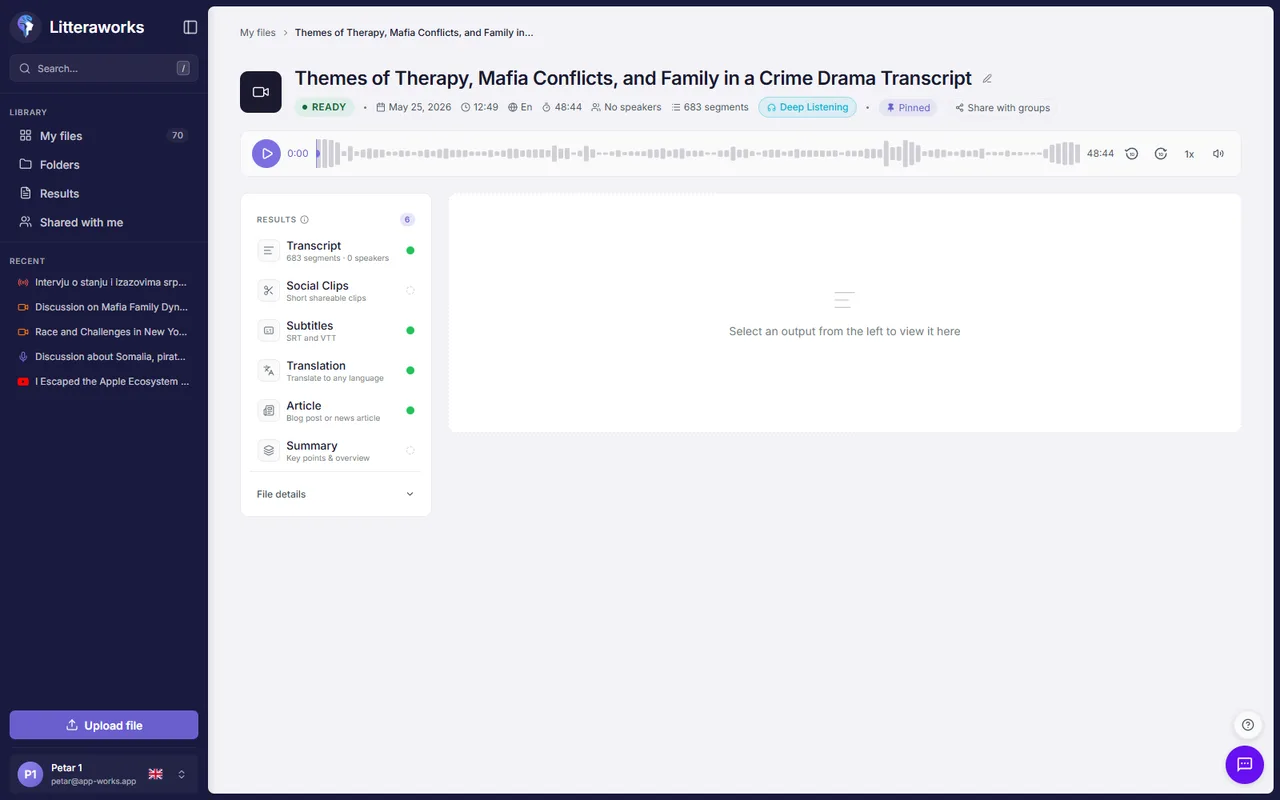
Upload and transcribe a file
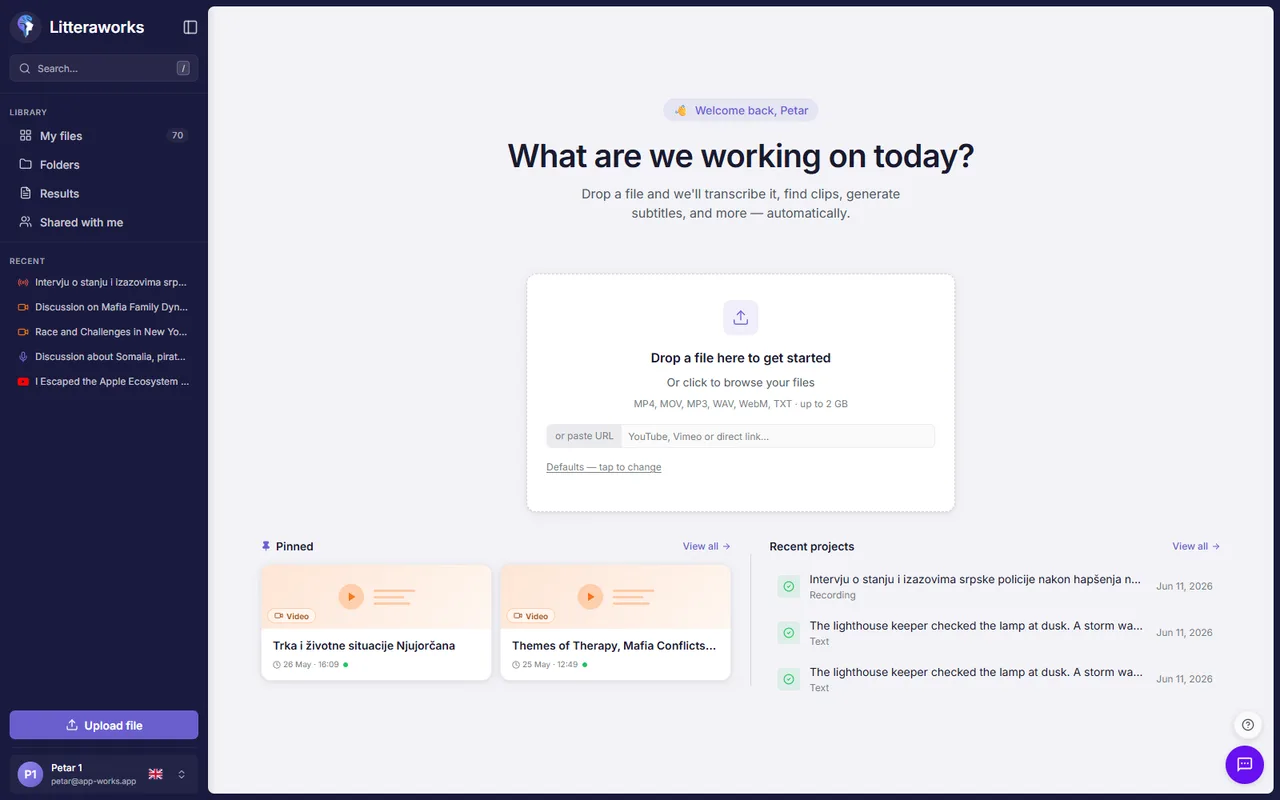
- Log in at litteraworks.cloud — the home screen is your starting point.
- Drop a file onto the upload zone, or paste a YouTube, Vimeo or direct media URL. Supported: MP4, MOV, MP3, WAV, WebM, TXT — up to 2 GB.
- Each added file gets its own settings row: language, transcription mode (Standard / Deep Listening) and speaker detection on/off.
- Click Upload. Progress appears in the tray; you can keep working while it processes.
- When transcription finishes, the file opens as a project hub: the transcript is ready, and every other output is one click away.
Tip: defaults for language, mode, speaker detection, subtitle line length, article and summary preferences live under Defaults — tap to change (also in account Settings), so you set them once.
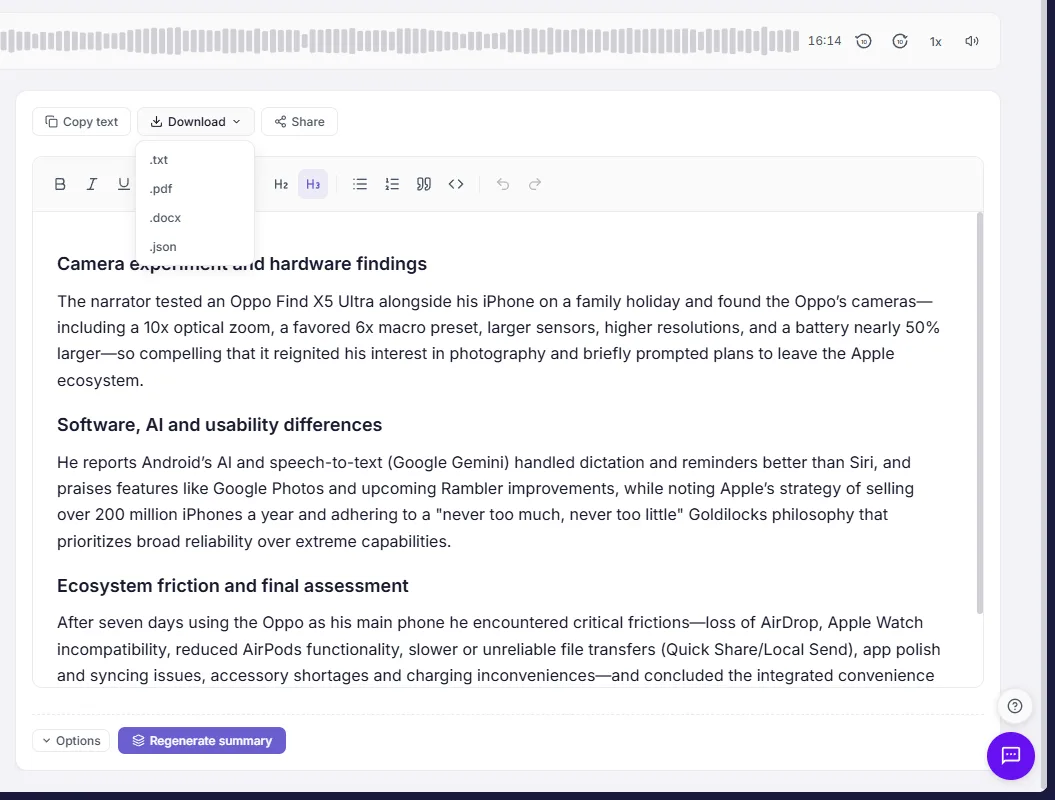
Work with the transcript
- Open a file and click Transcript in the Results list.
- Every line carries a timestamp — click it to jump the audio player to that moment.
- Edit text inline in the rich editor (bold, headings, lists, highlights), or switch to the classic Segments view with the toggle in the toolbar.
- Copy transcript copies the whole text; Download exports TXT, PDF, DOCX or JSON.
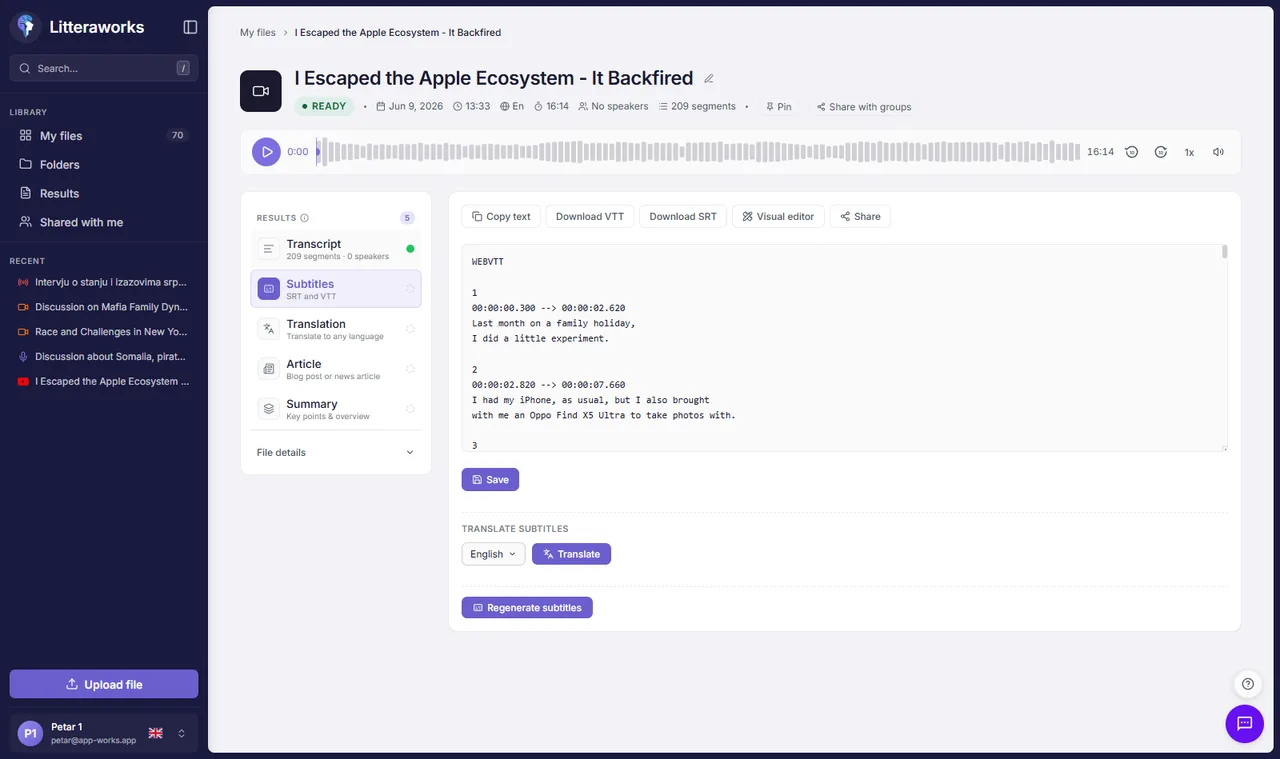
Generate subtitles
- In the file hub, click Subtitles, then Generate subtitles.
- Subtitles are built from the existing transcript in seconds — no re-upload, no re-processing.
- Review and edit the cues in the editor, or open the Visual editor to see them on the video timeline.
- Download as VTT or SRT — ready for YouTube, Premiere, or any video player.
- Need them in another language? Pick a language under Translate subtitles and click Translate — timing is preserved.
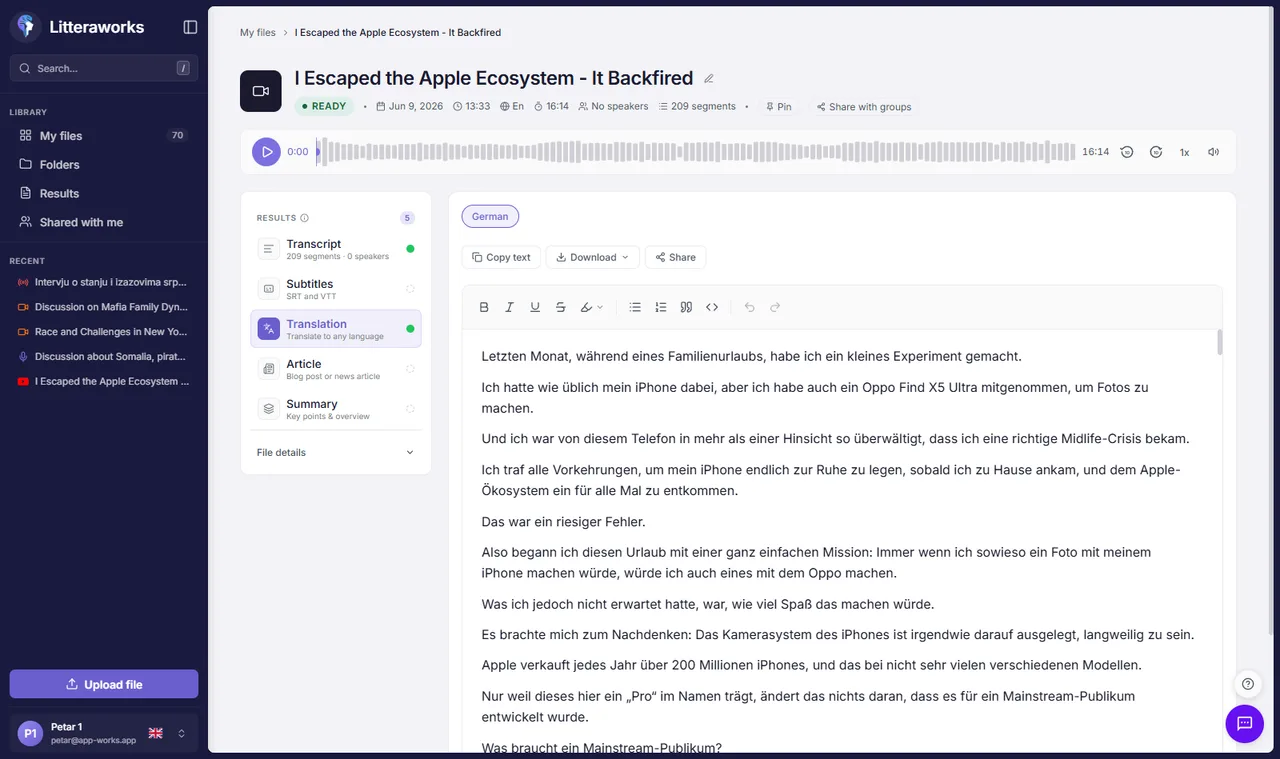
Translate a transcript
- Click Translation in the file hub.
- Choose a target language — 40+ available — and click Generate.
- The full transcript is translated with speaker labels and timestamps preserved; each language appears as its own tab, so you can keep several translations side by side.
- Edit the result in the rich editor, copy it, or download it in any export format.
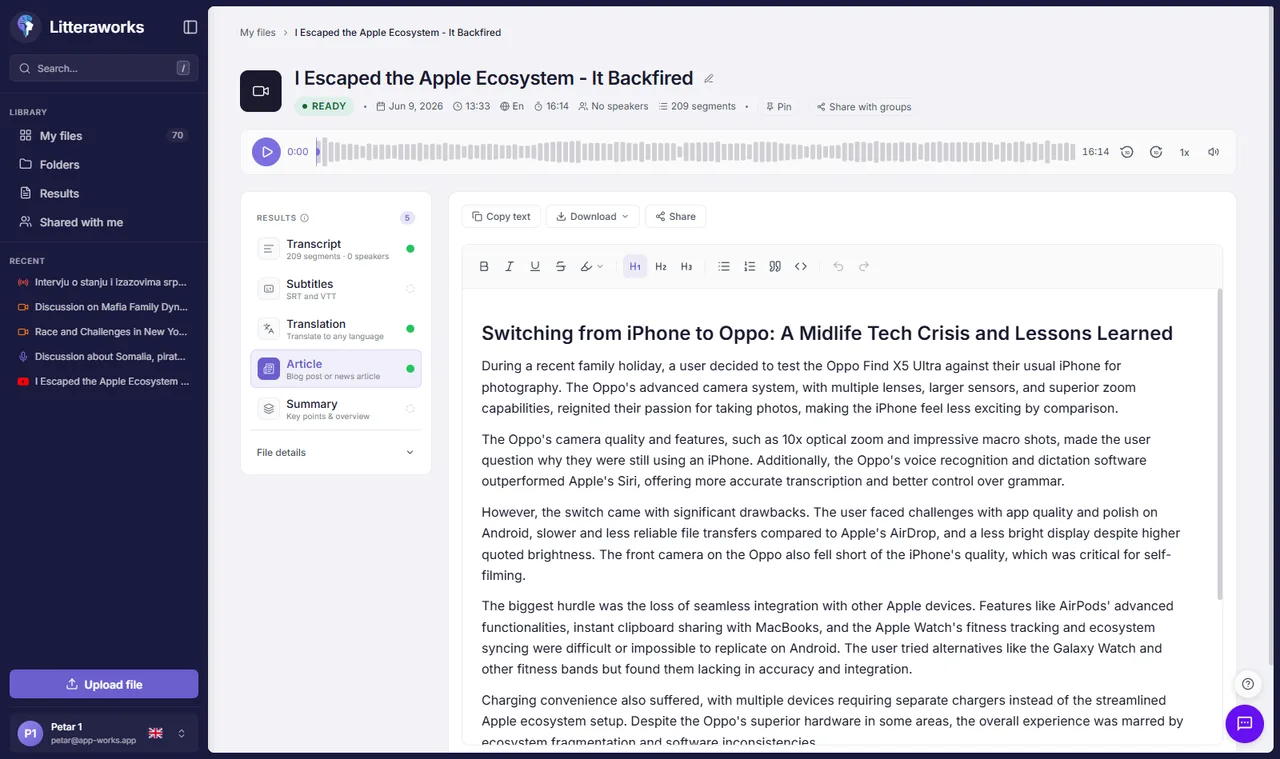
Turn a recording into an article or summary
- Click Article in the file hub. Choose the article type (e.g. news article) and output language, then Generate.
- The result opens in a rich text editor with headline and structured body — edit, copy, or download. Changes save automatically.
- For a quick overview, use Summary instead: key points and decisions, with options for language, tone, length and format.
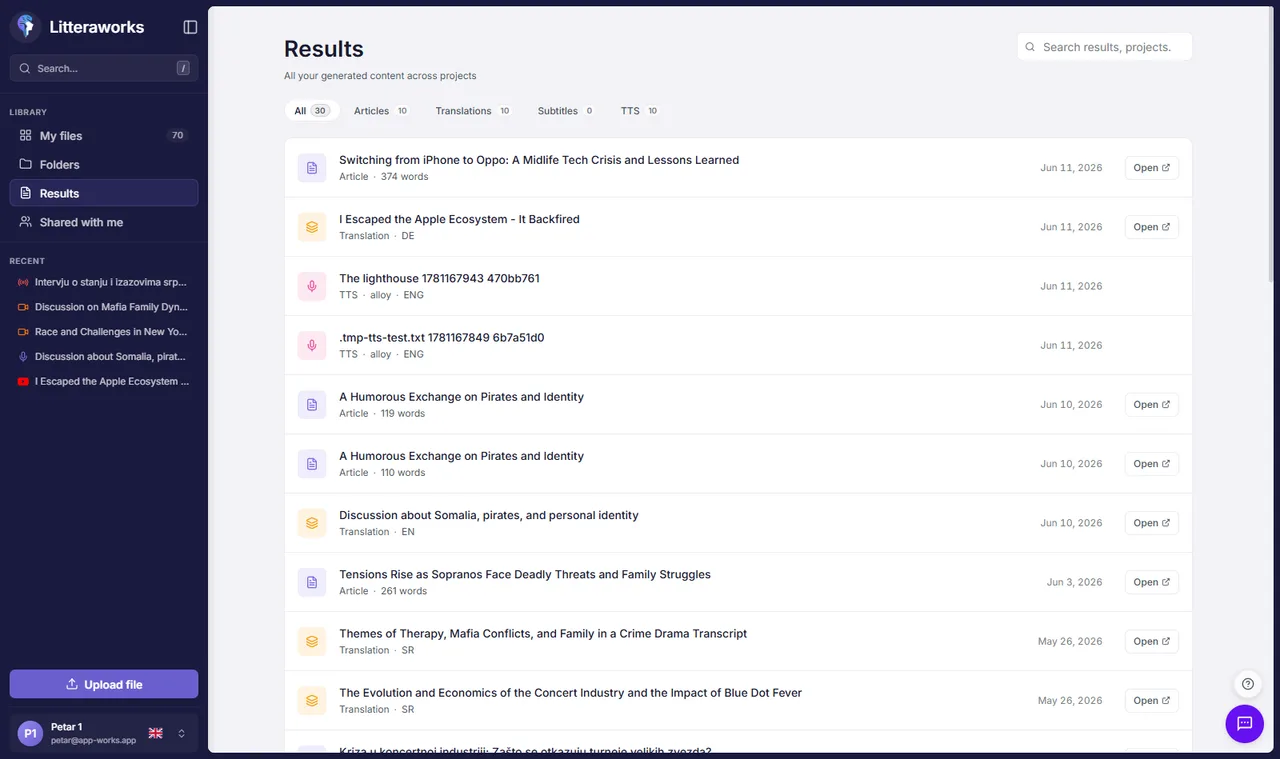
Find and share your work
- Results in the sidebar lists every generated output across all files — filter by type (Articles / Translations / Subtitles / TTS / Clips) and search. Click any row to jump straight to it.
- Press / anywhere to search projects and folders.
- Organize files into Folders — drag files in or use the move action on any file card.
- Share with groups on any file makes it available to your organization; items shared with you appear under Shared with me, where you can copy them into your own library.
Platform
Work the Way You Want
Access Litteraworks wherever your team works — browser, desktop, or on location.
Web Platform
A full-featured transcription management system in your browser. Upload, review, edit, and export transcriptions in one place — no install required.
Mobile App
Capture and transcribe on the go with native iOS and Android apps. Built for field journalists, reporters, and on-location teams.
Browser Extension
Transcribe directly from Chrome or Edge without switching tools. Capture audio from any tab or live stream with a single click.
Team & Workflow
Built for Teams
Designed for newsrooms and media organizations where multiple people work on the same content.
Collaborative Editing
Multiple team members can access, edit, and comment on the same transcription simultaneously without version conflicts.
AI Summarization
Automatically summarize long transcriptions into bullet points, paragraphs, or keyword-tagged highlights — in seconds.
Keyword Alerts
Define keywords and get instant alerts the moment they appear in a transcription. Never miss a critical mention across hours of content.
Role-Based Access
Control who can view, edit, or export. Keep sensitive content locked down while giving teams the access they need.
Automated Tagging
AI identifies and tags key topics, names, and entities across transcriptions for faster search and retrieval.
Revision History
Every edit is tracked. Roll back to any previous version of a transcription at any time.
Shared with Me
Transcripts shared with your organization appear in a dedicated Shared with me view — listen, read, and copy them into your own library with one click.
Results Hub
Every generated output — articles, translations, subtitles, text-to-speech, clips — across all your files, searchable and filterable in one place.